Getting started
gitmoreviews turns happy customers into 5-star Google reviews. Each card carries a QR code and an NFC chip — a customer taps or scans it and lands straight on your review page. Here's how to go from unboxing to your first tracked review.
1 · Create your account
Sign up with your business email. If your cards were ordered for you, use the email the order was placed under so your cards can be linked to your account.
2 · Add your Google business
Head to Businesses & people and start typing your business name — results appear as you type. Picking your business does two things: cards pointed at it send customers to your Google review page, and we start tracking your reviews so you can see exactly what your cards earn you.
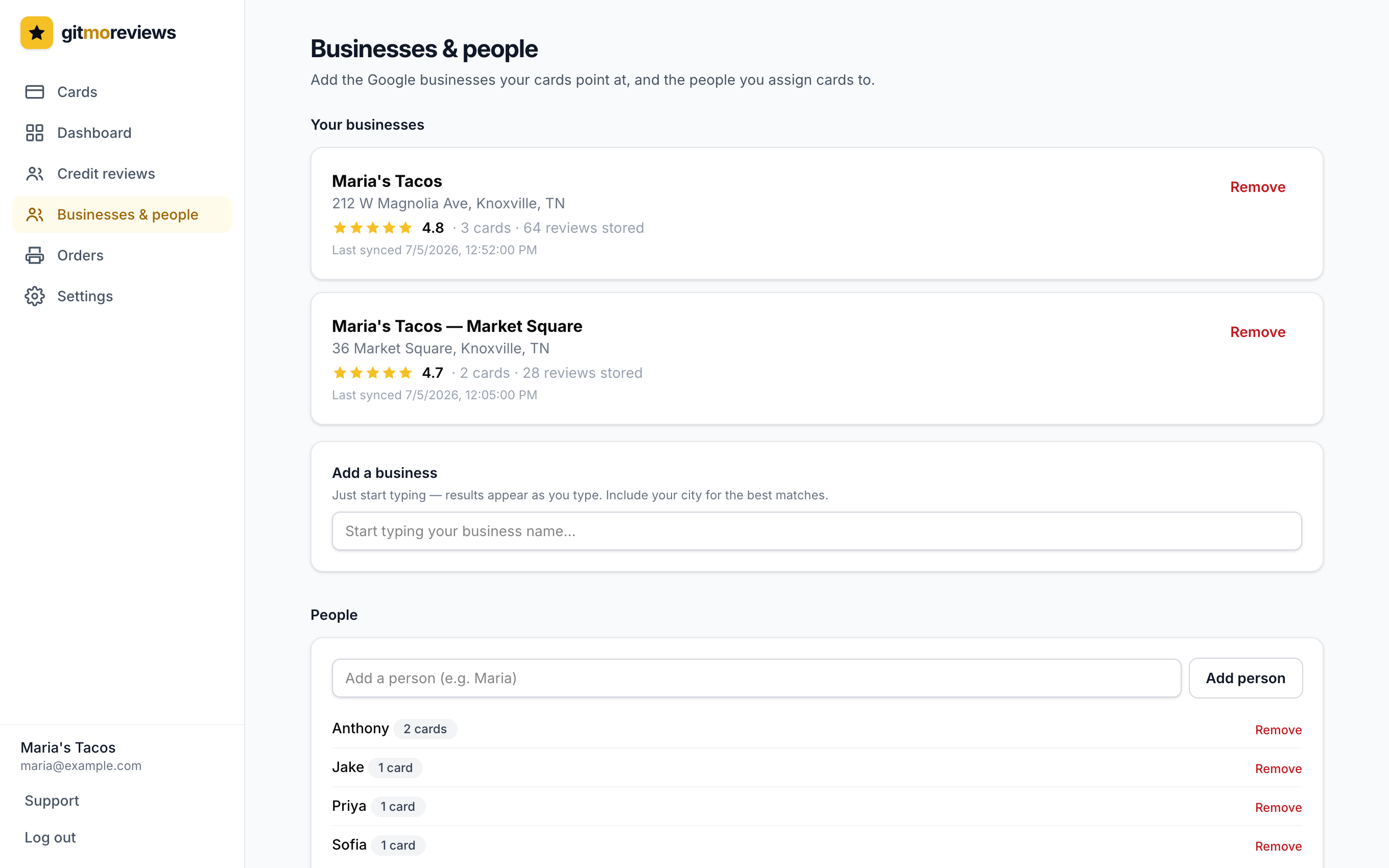
This page is also where you add people — the staff members you hand cards to. When a review mentions someone by name ("Jake was awesome!"), it's credited to them automatically.
3 · Activate your cards
- 1Scan the card (or enter its code)Every card has a short code printed on it. Scan the card yourself or type the code into the Cards page — either way you land on the setup screen.
- 2Point it at your businessPick which location the card sends reviews to, and optionally assign it to a person and give it a label like “Front counter”.
- 3Put it where customers areCounter, table tents, takeout bags, the check presenter — anywhere a happy customer has their phone out.
4 · Watch the reviews roll in
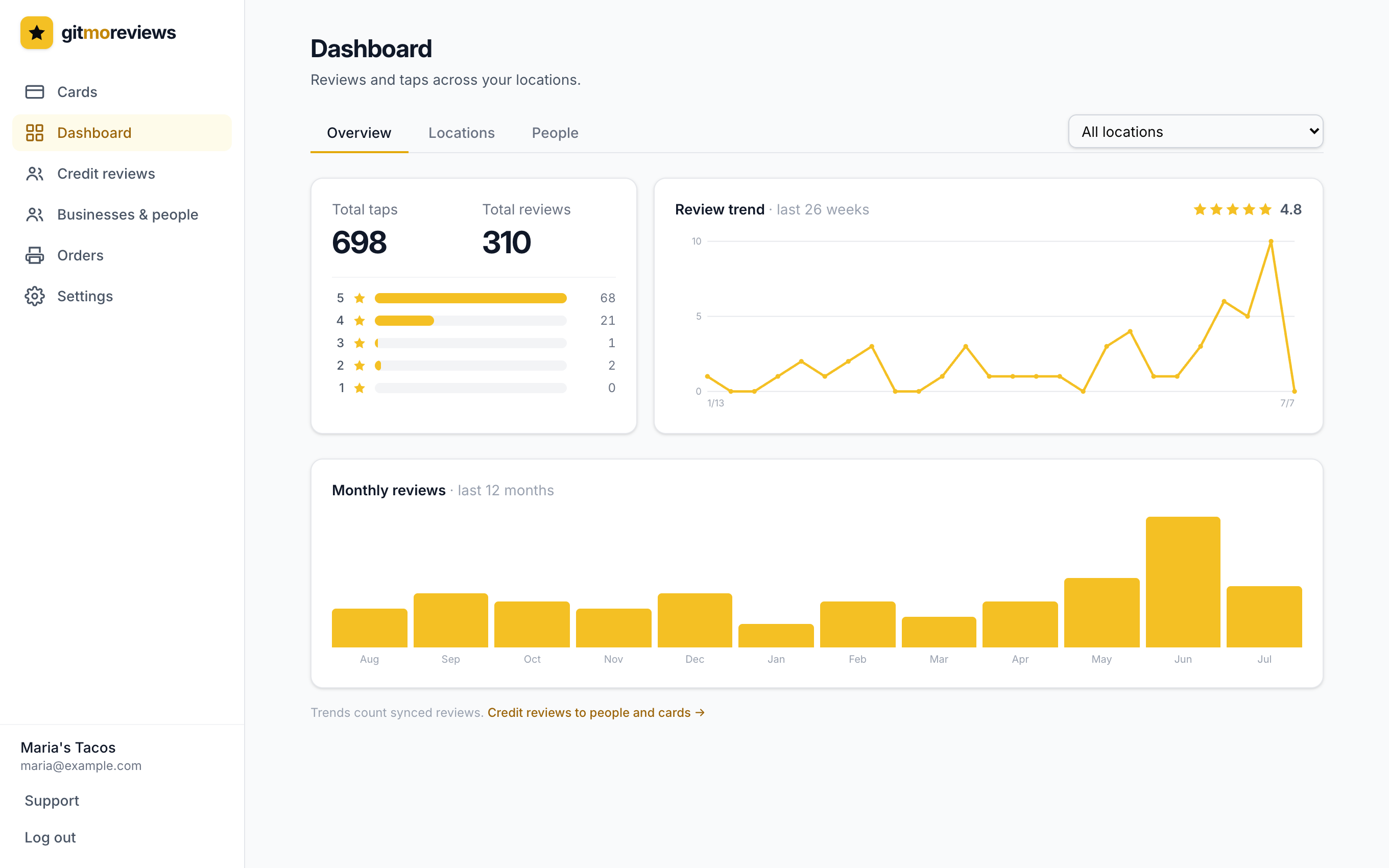
Every tap and scan is logged, your Google reviews sync automatically each week, and new reviews are matched to the card that likely earned them. The reports dashboard shows it all in one place.